Software stack
In Cecile software is provided systemwide through a so called software stack, a collection of software, generated by using the Spack package manager.
A software stack contains a number of software necessary for your analysis and much more. If any software you need is missing from the stack you may contact cecile-admins-l at ovgu.de to request it.
Type of stacks
There are two kinds of stacks available:
- Current stack: A stack that is kept stable for a long period of time. A new stable stack is created periodically from scratch, which means that the new
currentstack will include only new up-to-date software versions; however the old versions ofcurrentstacks are still available on the cluster. - Experimental stack: A flexible stack that is going to be frequently updated also upon user's request. A software requested by a user will be added to the
experimentalstack; as soon as a newcurrentstack is created the new software will be also added tocurrent.
Multiple software versions in experimental stack
Continuous updating in the experimental stack can lead to have multiple versions of the same software (e.g. python ~gcc@11.0 vs python ~gcc@11.1) in the experimental stack, therefore be careful to load the correct version when using the experimental stack. Usually back compatibility between software versions is mantained, but sometimes this might not be the case and some feature might have been changed.
How to use the stacks
-
Source the
currentstack, by running the following command (please, be aware of the space between the dot and the path) -
Now load a software using
module load <software name> -
To see what software is available run the following command
-
Source the
experimentalstack, by running the following command (please, be aware of the space between the dot and the path) -
Now load a software using
module load <software name>(in case a specific version is needed, check the software version withmodule avail) -
To see what software is available run the following command
Software names in the stack
Before loading a module it is advisable to check how the software you are interested in is called in the stack.
For example all python software is preceded by py-, thus to load pandas you need to type: module load py-pandas and
R software is preceded by r-.
This naming convention needs to be used when loading the software, in your code software must have their usual names.
New and old versions of current stacks and how to use them
As pointed out, the current stack is updated and rebuilt periodically; this procedure ensures that the cluster always includes up-to-date versions of all software. However, the older versions of current stacks are still available on the cluster. To distinguish them from the up-to-date current stack, the older versions of current stacks get a suffix indicating the creation date, current_<yyyy-mm-dd>.
To use an older current stack you only need to source the correct stack:
For example:
Medusa software stack
In case you need to use the old software stack used within the Medusa cluster, please contact the admin at cecile-admins-l at ovgu.de
Available current stacks and included software
The following tables represent all the current stacks (up-to-date and older) currently available on the cluster and software included in each of them.
Table of current stack
| Software | Version |
|---|---|
| bids-validator | 2.4.1 |
| bidsonym | 0.0.6_2025-10-24 |
| connectome-workbench | 2.1.0 |
| eyelink | 2.1.1197.0_v26.04 |
| fmriprep | 25.2.5 |
| freesurfer | 8.2.0-1 |
| fsl | 6.0.7.22 |
| gdb | 17.1 |
| git-annex | 10.20230408 |
| git | 2.53.0 |
| gnuplot | 6.0.0 |
| hdf5 | 1.14.6 |
| headcase-pipeline | 1.0.0_2024-05-16_cca8bf2 |
| heudiconv | 1.4.0 |
| laynii | 2.10.0 |
| matlab | r2025b |
| mricron | 1.2.20211006 |
| mriqc | 24.0.2 |
| plantus | 0.1.1 |
| py-bidscoin | 4.6.2 |
| py-bidskit | 2025.11.7 |
| py-datalad | 1.4.0 |
| py-dcm2bids | 3.2.0 |
| py-eye2bids | 0.1.2026-03.16 |
| py-flake8 | 7.3.0 |
| py-glmsingle | main |
| py-jupyterlab | 4.5.8 |
| py-matplotlib | 3.10.9 |
| py-memory-profiler | 0.61.0 |
| py-mne-bids | 0.18.0 |
| py-mne | 1.11.0 |
| py-mypy | 2.1.0 |
| py-neurokit2 | 0.2.13 |
| py-neurora | 1.1.6.12 |
| py-nibabel | 5.4.2 |
| py-nilearn | 0.13.1 |
| py-nipype | 1.11.0 |
| py-numba | 0.65.1 |
| py-numpy | 2.3.5 |
| py-palettable | 3.3.3 |
| py-pandas | 2.3.3 |
| py-pip | 26.1 |
| py-pybv | 0.7.6 |
| py-rsatoolbox | 0.2.0 |
| py-scikit-learn | 1.8.0 |
| py-scipy | 1.17.1 |
| py-seaborn | 0.13.2 |
| py-sphinx | 9.1.0 |
| py-statsmodels | 0.14.6 |
| py-virtualenv | 21.4.1 |
| py-wesanderson | 0.0.4 |
| python | 3.14.5 |
| r-afex | 1.5-1 |
| r-bayesfactor | 0.9.12-4.8 |
| r-brms | 2.23.0 |
| r-dplyr | 1.2.0 |
| r-emmeans | 2.0.2 |
| r-ggplot2 | 4.0.3 |
| r-irkernel | 1.3.2 |
| r-rstan | 2.32.7 |
| r-tidyverse | 2.0.0 |
| r | 4.5.3 |
| simnibs | 4.6.0 |
Table for current_2024-07-28 stack
| Software | Version |
|---|---|
| bids-validator | 1.14.6 |
| bidsonym | 0.0.6 |
| deepprep | 25.1.0 |
| environment-modules | 5.4.0 |
| eyelink | 2.1.1197.0 |
| fmriprep | 21.0.2 |
| fmriprep | 23.0.2 |
| fmriprep | 24.0.0 |
| freesurfer | 7.4.1 |
| fsl | 6.0.7.4 |
| gdb | 14.2 |
| git-annex | 10.20230408 |
| git | 2.45.2 |
| gnuplot | 6.0.0 |
| hdf5 | 1.14.3 |
| headcase-pipeline | 1.0.0_2024-05-16_cca8bf2 |
| heudiconv | 1.1.6 |
| laynii | 2.7.0 |
| matlab | r2023b |
| mricron | 1.2.20211006 |
| mriqc | 23.1.0 |
| py-bidscoin | 4.1.1 |
| py-bidskit | 2023.9.7 |
| py-datalad-hirni | 0.0.8 |
| py-datalad | 0.18.4 |
| py-dcm2bids | 3.1.0 |
| py-eye2bids | 0.1.dev1 |
| py-flake8 | 6.1.0 |
| py-glmsingle | main |
| py-jupyterlab | 4.0.1 |
| py-matplotlib | 3.9.0 |
| py-memory-profiler | 0.61.0 |
| py-mne-bids | 0.15.0 |
| py-mne | 1.7.1 |
| py-mypy | 1.8.0 |
| py-neurokit2 | 0.2.4 |
| py-neurora | 1.1.6.10 |
| py-nilearn | 0.10.3 |
| py-nipype | 1.8.6 |
| py-numba | 0.58.1 |
| py-numpy | 1.26.4 |
| py-palettable | 3.3.3 |
| py-pandas | 2.1.4 |
| py-pip | 23.1.2 |
| py-pybv | 0.7.5 |
| py-rsatoolbox | 0.2.0 |
| py-scikit-learn | 1.5.1 |
| py-scipy | 1.14.0 |
| py-seaborn | 0.13.2 |
| py-sphinx | 7.4.5 |
| py-statsmodels | 0.14.0 |
| py-virtualenv | 20.24.5 |
| py-wesanderson | 0.0.3 |
| python | 3.11.9 |
| r-afex | 1.3-0 |
| r-brms | 2.19.0 |
| r-emmeans | 1.8.5 |
| r-rstan | 2.21.8 |
| r-tidyverse | 2.0.0 |
| r | 4.4.0 |
| rabies | 0.5.0 |
| simnibs | 4.5.0 |
| texlive | 20220321 |
Matlab software stack
The Matlab installation provided in the stack does include a variaty of toolboxes. In general we differentiate between toolboxes provided by MathWorks and third party toolboxes.
MathWorks toolboxes are toolboxes from https://www.mathworks.com/products.html like e.g. Image Processing Toolbox or Statistics and Machine Learning Toolbox and are included automatically.
Third party toolboxes like SPM or FieldTrip are also available in the central software stack but have to be loaded manually.
Don't use genpath to load all third-party toolboxes at once
Although matlab provides the possibility to load all toolboxes within a path by using genpath, this is not recommended to do because some of the toolboxes don't work well together and might break. For example spm will not start anymore.
Matlab shortcuts fix
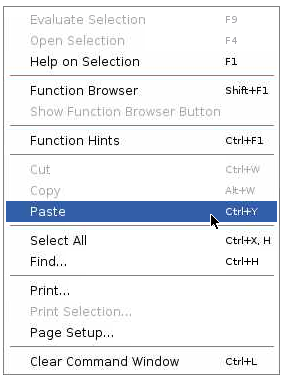
While interacting with Matlab, you might notice that shortcuts such as Ctrl-C or Ctrl-V do not work as expected, this behavior is due to a different editor keys-shortcuts binding, in the image below you can see that Paste is indeed bound to the Ctrl-Y shortcut.
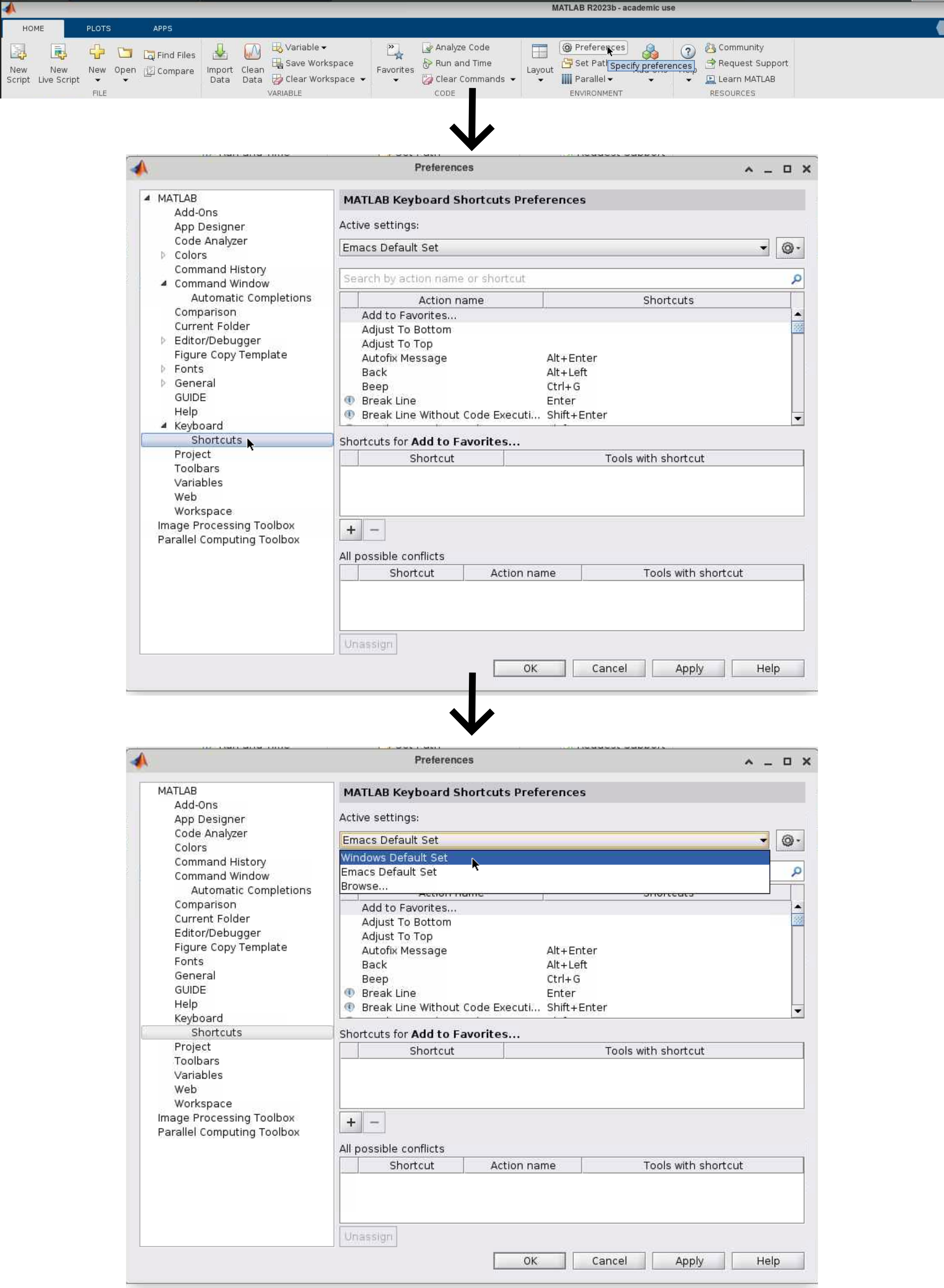
If you go to preference, then to shortcuts and select Windows Default Set and press Apply, the regular shortcuts will be repristinated.
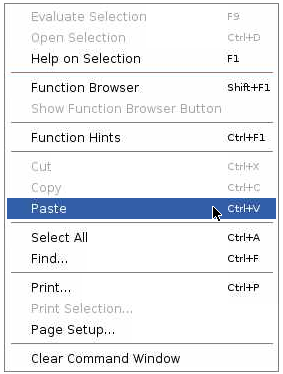
To verify that the process was successful, do a right click with your mouse and you will see that now Paste is bound to the familiar Ctrl-V.
JupyterLab
What is JupyterLab?
JupyterLab is a web-based interactive environment for notebooks and code. For in depth information, please visit Jupyterlab page.
How to use JupyterLab on Cecile
JupyterLab works only via Open OnDemand
-
Once you are on Open OnDemand, go to
Interactive Appsand select JupyterLab (image below) and a configuration window will be shown.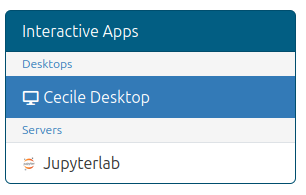
-
Configure your JupyterLab session (see image below):
-
Kernel: It allows to choose the language you want to use inside JupyterLab. The available kernels are
pythonandR, by selecting either one of these kernels you are able to use only the selected language within JupyterLab. By selectingallyou have bothpythonandRkernels and all the relative libraries available. -
Jupyterlab start directory: There are two starting directory options:
user home, which allows you to start and use JupyterLab in yourhome, and/data/projects/which allows you to start JupyterLab in/data/projects/and to freely navigate to your project via the JupyterLab GUI. Keep in mind that if you selectuser homeas starting directory, you cannot navigate to/data/projects/and vice versa. -
The remaining configuration options are the same as any other interactive session.
Loading all libraries takes time
By selecting
allin kernels, you have more flexibility inside JupyterLab, but it requires about 1 minute to load all the libraries. Please be patient.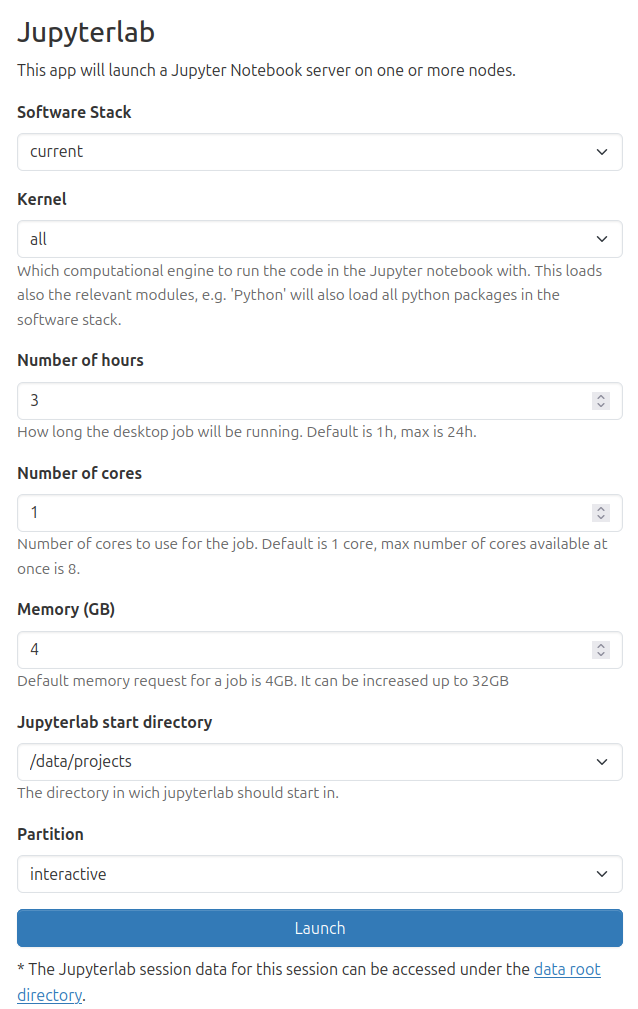
-
-
Launch JupyterLab
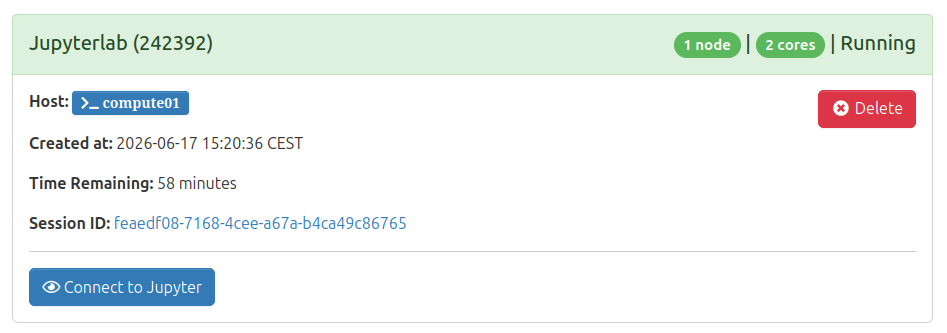
-
Now you are on JupyterLab and you can work on notebooks or code.
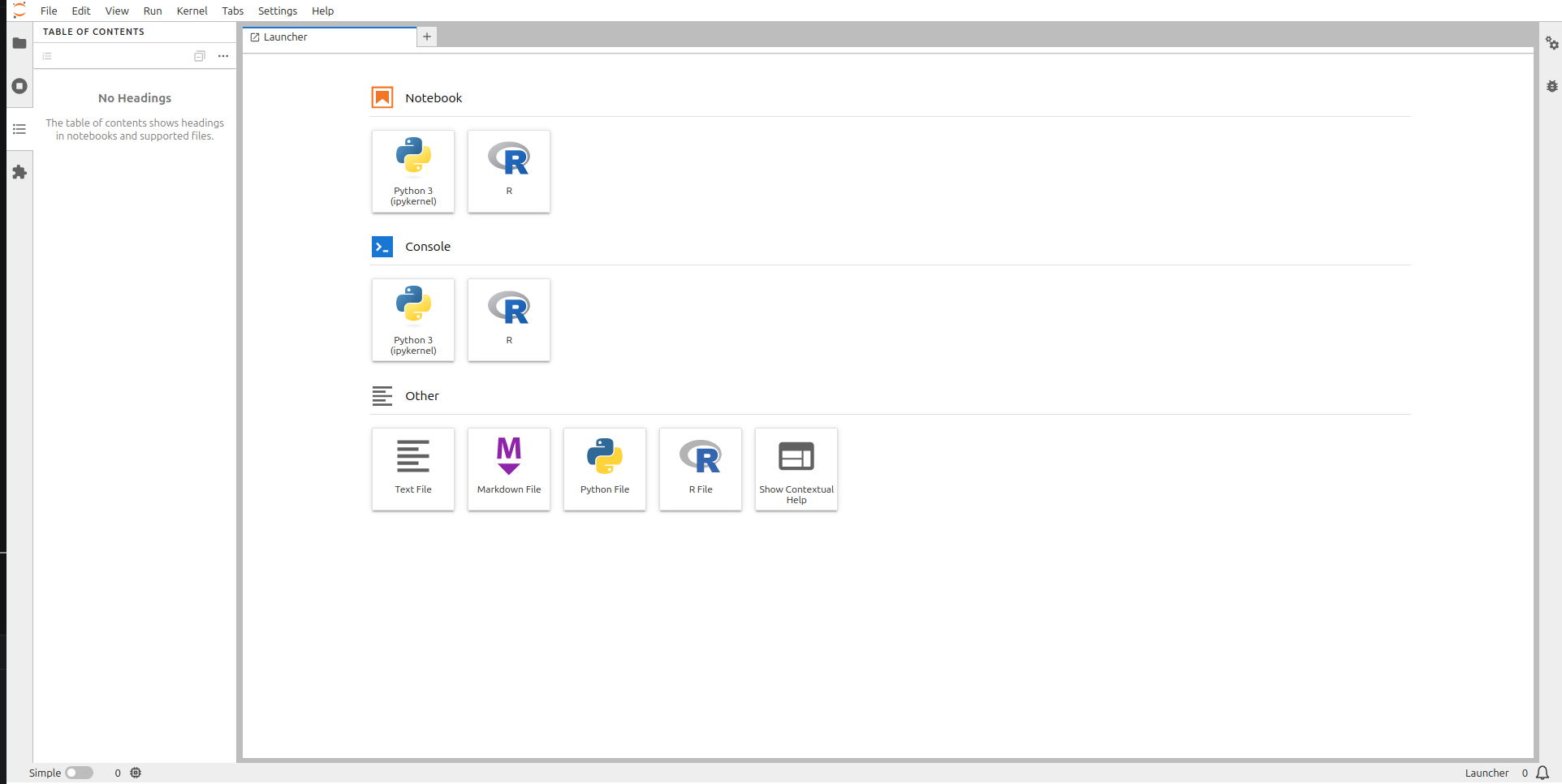
-
Once you are done working with JupyterLab, please shut down the interactive session:
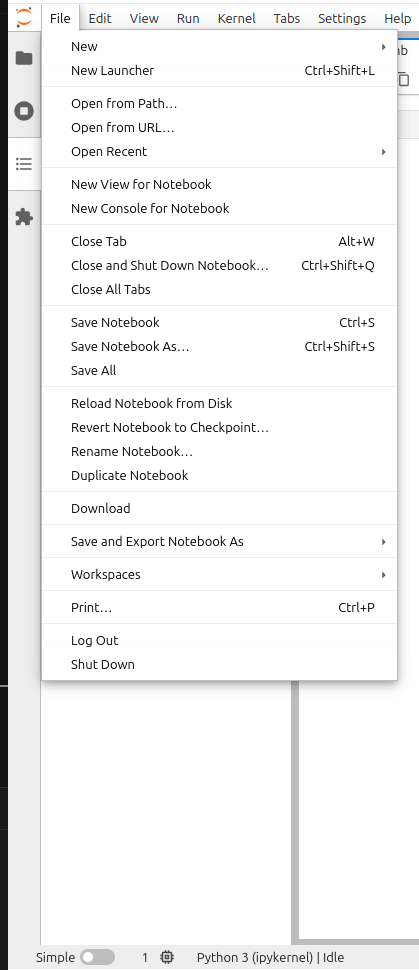
File-->Shut Down